
Your Guide to Zeffy's Email Builder
Zeffy's email builder is designed to make email creation faster, simpler, and more flexible.
This guide covers:
How to access the email builder
How to add, move, and edit content blocks
How to customize the overall design of your email
How to set recipients and send your email
How to access, save, and edit templates
Accessing the email builder
To open the email builder:
Go to the Communications tab in your Zeffy dashboard
Click New Email
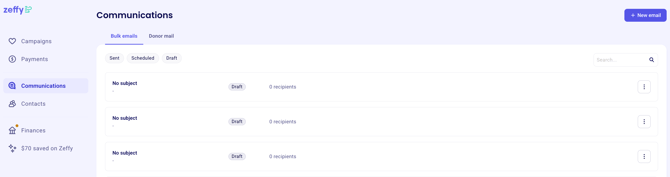
Choose one of the following options:
Start from a pre-designed template
Start from scratch
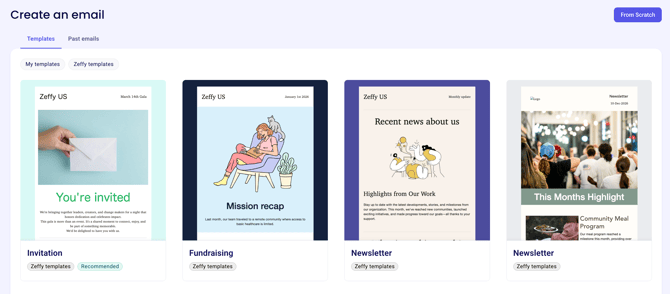
Once selected, the email builder opens with a visual editor where all content is added and managed.
Navigating the email builder
The email builder is made up of two main areas:
Email canvas
Displays the layout of your email (toggle between desktop and mobile version)
Allows you to add, move, and arrange content blocks
Side panel
Displays editing options based on what you have selected
Switches between:
Component settings (for individual blocks)
Global styles (for the entire email)
Using global styles
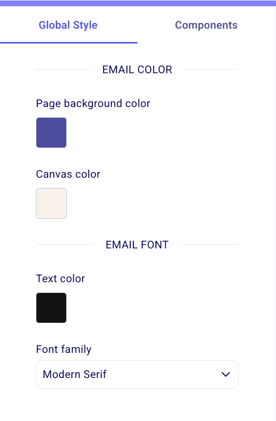
Global styles apply changes to the entire email.
From the Global styles panel, you can edit:
Email color
Background color
Canvas color
Default text color
Notes:
Changes to the global style apply to all relevant elements in the email
Global styles are best used for branding and consistency
Individual blocks can be edited using the component settings (available when the block is clicked)
Adding content blocks
To add a new content block:
Hover over the section where you want to add content
Click the plus (+) icon that appears below the container you wish to add content to
Select a block type from the list
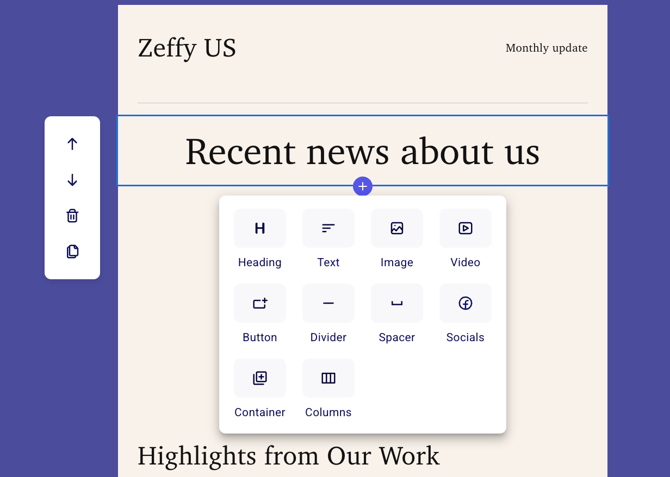
Available content blocks include:
Heading
Text
Image
Video
Button
Divider
Spacer
Social media icons
Container
Columns
Moving, duplicating, and deleting blocks
Each content block includes controls that appear when you hover over it.
You can:
Move a block up or down using the up and down arrow icons
Delete a block using the trash icon
Duplicate a block using the clone icon
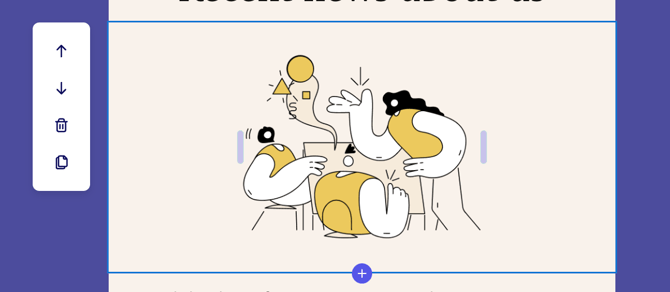
These options allow you to reorganize your email without rebuilding content.
Editing text and heading blocks
To edit text or a heading:
Click directly on the block
Use the component settings in the side panel
From the Components section on the side menu, you can:
Change the heading/font size
Select a font family
Adjust the container's background color
Modify padding
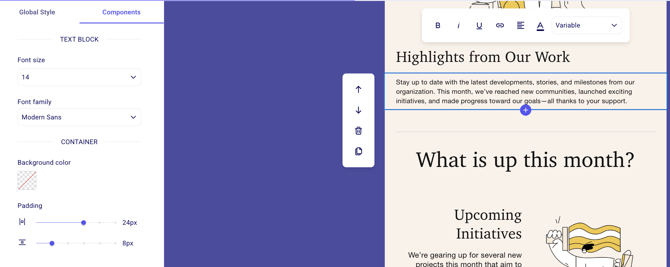
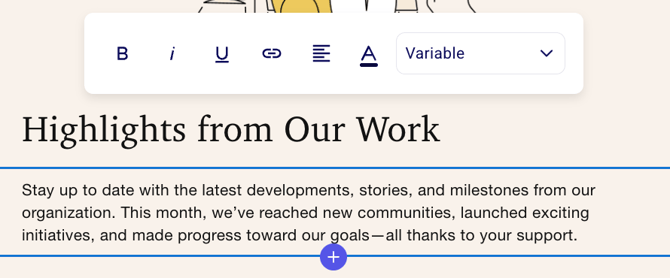
Text formatting options are available directly in the email canvas when you click on the text you want to edit, allowing you to:
Bold
Italicize
Underline
Change alignment
Change text color
Add links to make text clickable
Add personalization variables (first name, last name)
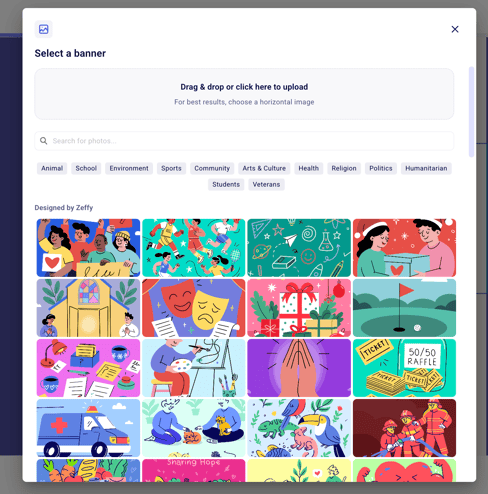
Editing image blocks
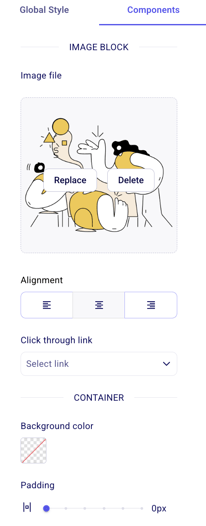
To edit an image block:
Click on the image block
Select Replace image if an image already exists in its place
You can then:
Choose an image from Zeffy’s image library
Upload your own image by:
Dragging and dropping a file
Clicking to upload from your device
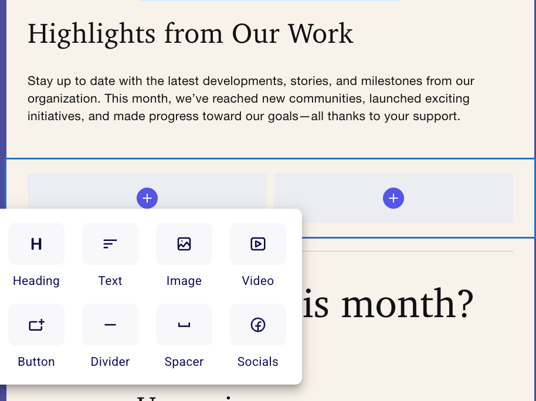
Adding columns
Columns allow you to display content side by side.
To add columns:
Click the plus (+) icon
Select Columns
Add content blocks inside each column
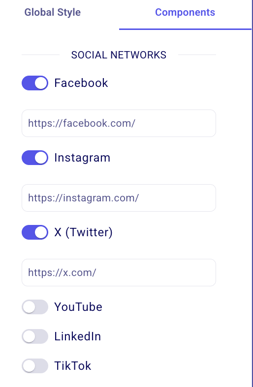
Adding and editing social media icons
To add social media icons:
Add a Social media icons block (often inside a container)
Click the block to open component settings
From the Components menu on the left-hand side you can:
Toggle individual platforms on or off
Add links to each social media page
Choose an icon style (black, white, color)
Set a background color for the container
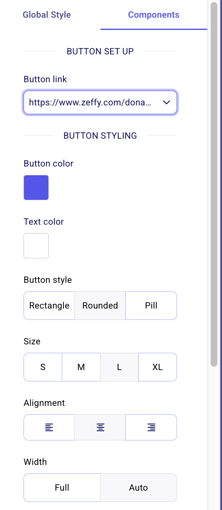
Adding and customizing buttons
To add a button:
Add a Button block
Click the button to open component settings
From the Components menu on the left-hand side you can:
Link to a Zeffy campaign
Add a custom link
Customize:
Button color
Text color
Button shape (rounded or rectangular)
Button size
Alignment within the block
Using dividers and spacers
Dividers and spacers help structure your email visually.
Dividers
Add a horizontal line between sections
Spacers
Add blank space between content blocks
Previewing and saving your email
Before sending, you can preview your email in desktop or mobile view
You can also save the email as a template:
In the bottom right corner, click Save as Template
Name the template
Access it later from your template library
Setting subject line and sender details
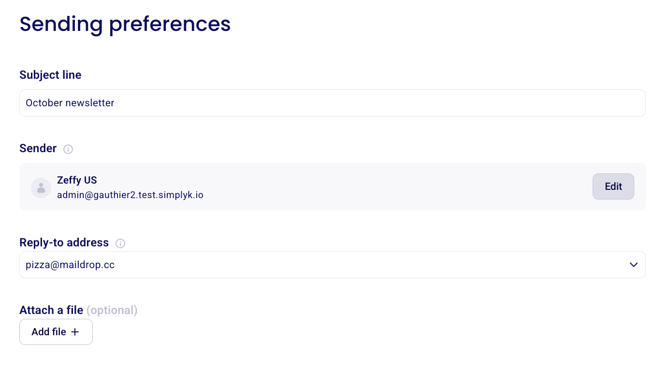
To configure sender information under Sending Preferences:
Click Next
Enter a subject line (required)
Edit the sender name if needed
Select or update the sender email address
Send emails from your custom domains (learn more here)
Choose a reply-to address from available account emails
Attach a file if needed:
One file
Maximum size: 20 MB
Selecting recipients
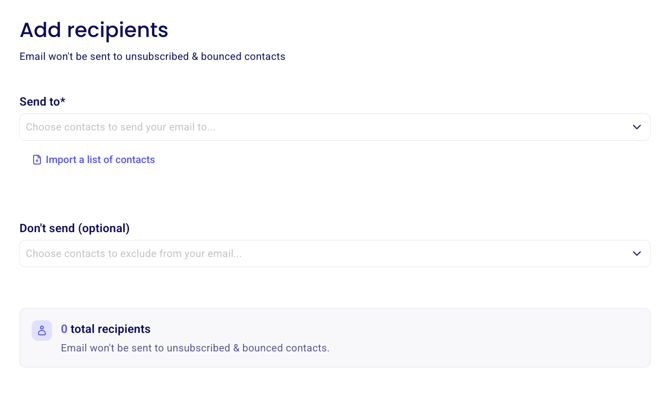
To choose who receives the email, click Next:
Select one or more contact lists
Zeffy supports up to 5 000 contacts on an email at once
Connect a custom domain to email up to 30 000 contacts at once
Filter your full contact list if needed
Optionally select lists to exclude from receiving the email
For more information on contact lists, refer to this article.
To learn how to import your contact list from your existing newsletter tool, consult this video.
To learn how to send emails to all or a segment of your contacts, consult this article.
Sending or scheduling the email
To finish:
Click Next
Choose one of the following options:
Send immediately
Schedule for a specific date and time
(Optional) Send a test email to yourself or another user with access to the account
Click Send now or confirm the scheduled send
Apply branding and styling
Use Global styles to update colors and other visual settings across the full email.
This is the fastest way to keep your emails consistent with your organization’s branding.
Start from a template
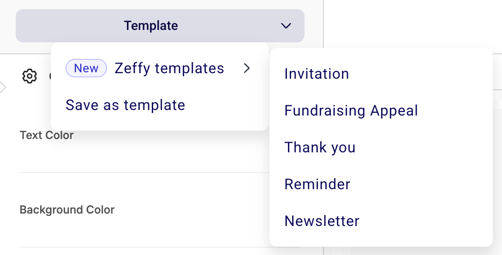
When you create a new email, choose Template to browse pre-designed options.
Click Template in the email builder.
Select Zeffy templates to see built-in designs for newsletters, fundraising appeals, event recaps, invitations, and follow-ups.
Choose the template you want and customize it for your message.
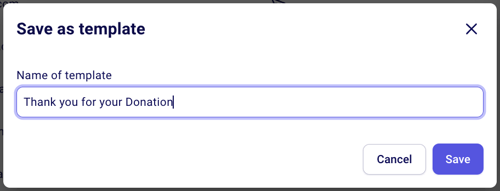
Save an email as a template
Turn any email design into a reusable template.
Design your email in the builder.
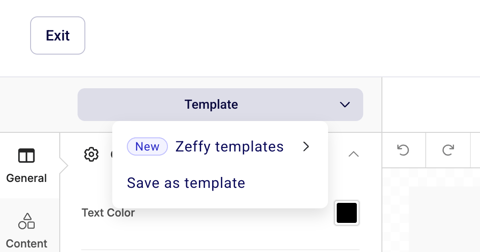
Click the Template button in the editor toolbar.
Choose Save as template.
Enter a name for the template and save.
Use a saved template
You can reuse templates you created for consistent messaging.
Open the email builder.
Click Template.
Select Your templates to see your saved designs.
Choose a template to apply it to your new email.
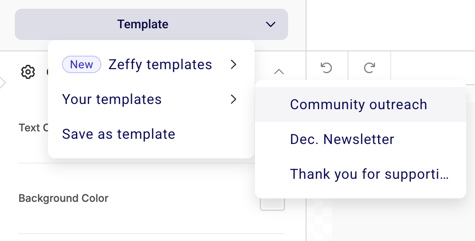
After applying a template, you can still customize the email before sending.
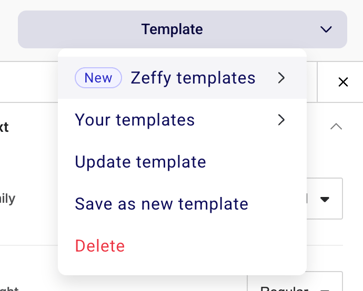
Edit a template
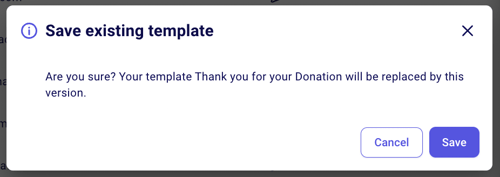
Update an existing template by using it, making changes, and saving the update.
Start a new email and apply the template you want to edit.
Make your changes to the design.
Click Template again and choose Update template.
Confirm to save your changes to the template.
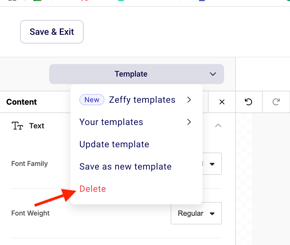
Delete a template
Remove templates you no longer need.
Start a new email and apply the template you want to delete.
Click Template.
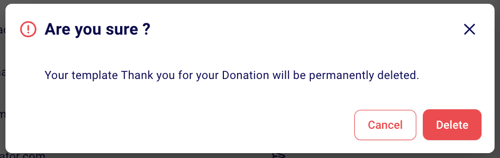
Click the red Delete button.
Confirm to remove the template.
Pro tips for email design
Save your custom designs as templates for future use.
Keep your layout clean and organized.
Use images thoughtfully to support your message.
Test all interactive elements before sending.
Monitor email performance in the Emails section after sending.
If the email builder in your Zeffy account looks different from the screenshots above, you may be on Zeffy's new version of the builder which is being gradually rolled out. The core features work the same way.
Preview your email before sending
Click on "Preview" to view the email in desktop and mobile view before you send it.
When the design is ready, continue to the send steps in Send emails to contacts.