
Use the email builder and templates
Use the email builder to design, edit, and reuse emails in Zeffy.
Open the email builder
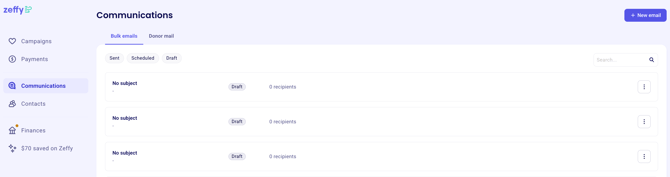
Go to Communications.
Click New Email.
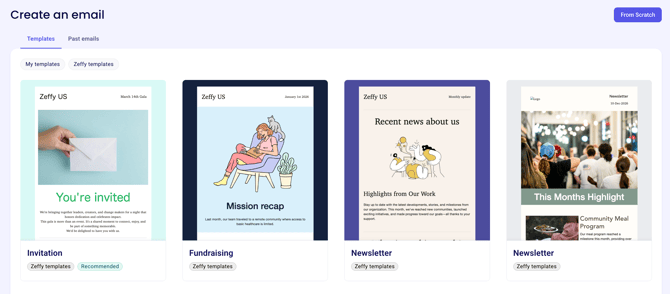
Choose a template or start from scratch.
The builder opens with a visual editor where you can create and update your email layout.
Add and arrange content blocks
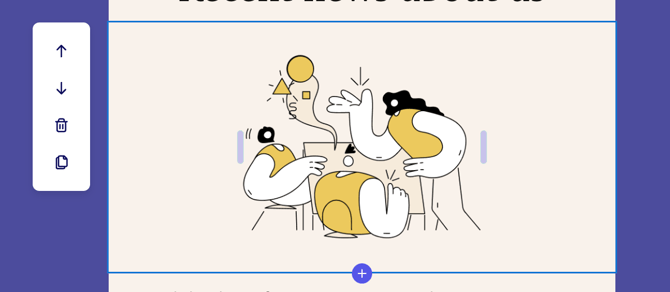
Use the plus icon to add blocks like headings, text, images, buttons, dividers, spacers, social icons, containers, and columns.
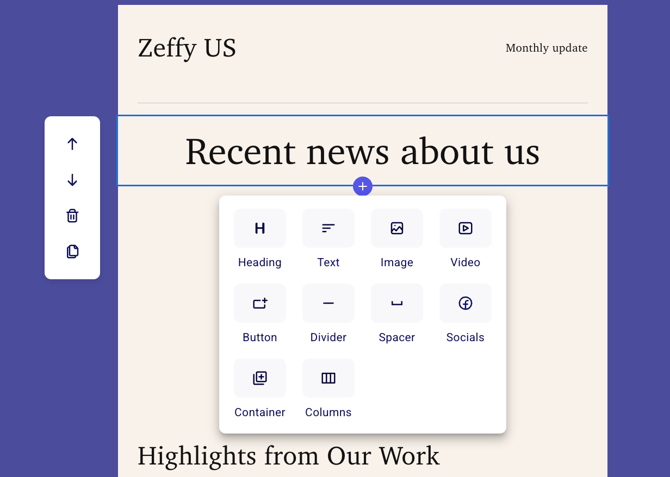
Move, duplicate, or delete blocks to adjust the layout without rebuilding the email.
Format text, images, and buttons
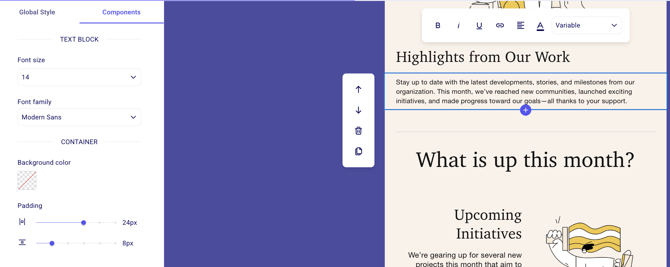
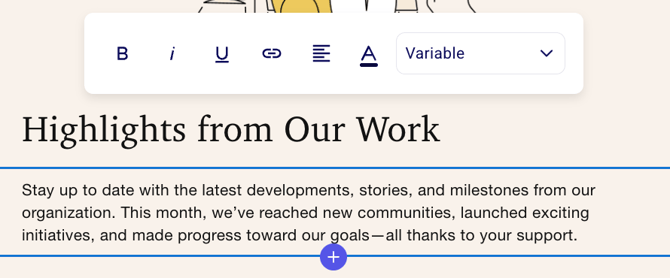
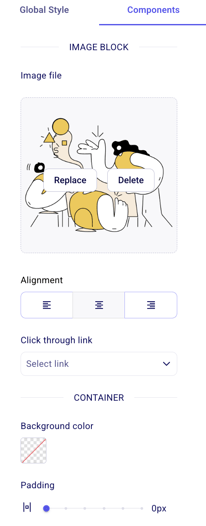
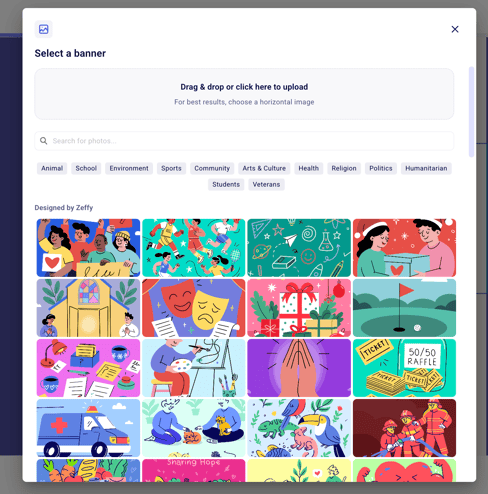
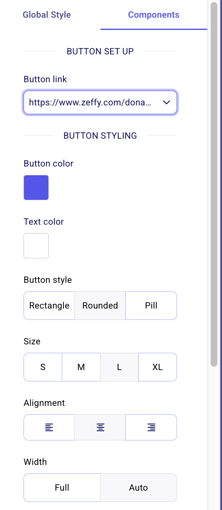
Edit each block from the builder panel. Update text styles, replace images, add links, and configure buttons based on the action you want readers to take.
Add personalization with variables
Use variables to personalize each email with recipient details.
Click inside a text block where you want to add personalization.
Click Variables to see available options.
Choose First name or Last name to insert the variable.
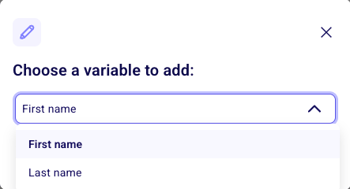
When the email is sent, each recipient sees their own name in place of the variable.
Mobile optimization
Check how your email looks on mobile devices before sending.
Click the mobile preview icon in the builder.
Review the layout on a smaller screen.
Adjust text size, image placement, or button sizes if needed.
What happens when you include Zeffy form links
When you include a Zeffy form link in an email created with the builder, Zeffy automatically appends each recipient's information—such as name, email address, and mailing address—to every Zeffy link. This means donors are recognized when they click through and can complete their donation or registration more quickly. No additional setup is required.
Apply branding and styling
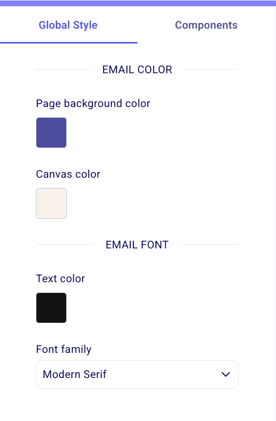
Use Global styles to update colors and other visual settings across the full email.
This is the fastest way to keep your emails consistent with your organization’s branding.
Start from a template
When you create a new email, choose Template to browse pre-designed options.
Click Template in the email builder.
Select Zeffy templates to see built-in designs for newsletters, fundraising appeals, event recaps, invitations, and follow-ups.
Choose the template you want and customize it for your message.
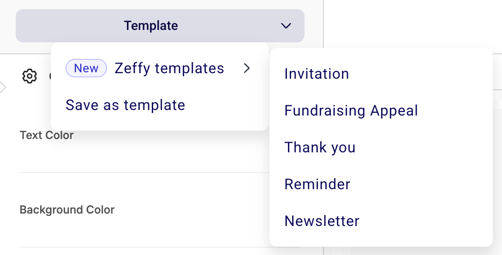
Save an email as a template
Turn any email design into a reusable template.
Design your email in the builder.
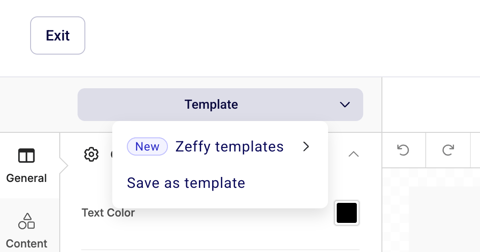
Click the Template button in the editor toolbar.
Choose Save as template.
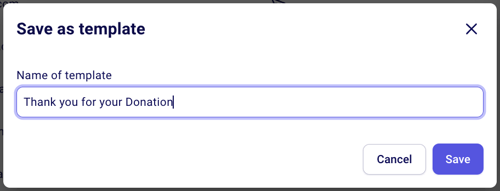
Enter a name for the template and save.
Use a saved template
You can reuse templates you created for consistent messaging.
Open the email builder.
Click Template.
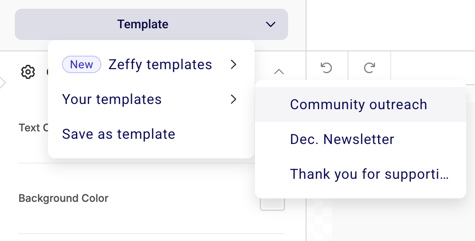
Select Your templates to see your saved designs.
Choose a template to apply it to your new email.
After applying a template, you can still customize the email before sending.
Edit a template
Update an existing template by using it, making changes, and saving the update.
Start a new email and apply the template you want to edit.
Make your changes to the design.
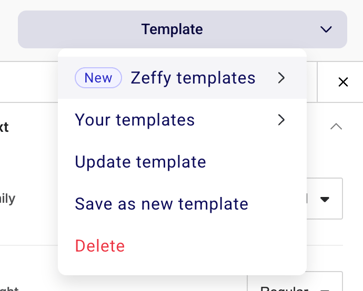
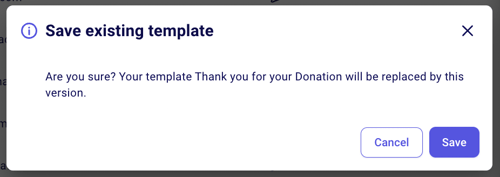
Click Template again and choose Update template.
Confirm to save your changes to the template.
Delete a template
Remove templates you no longer need.
Start a new email and apply the template you want to delete.
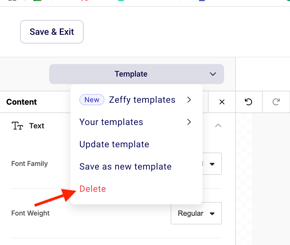
Click Template.
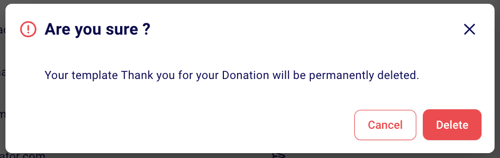
Click the red Delete button.
Confirm to remove the template.
Pro tips for email design
Save your custom designs as templates for future use.
Keep your layout clean and organized.
Use images thoughtfully to support your message.
Test all interactive elements before sending.
Monitor email performance in the Emails section after sending.
If the email builder in your Zeffy account looks different from the screenshots above, you may be on Zeffy's new version of the builder which is being gradually rolled out. The core features work the same way.
Preview your email before sending
Click on "Preview" to view the email in desktop and mobile view before you send it.
When the design is ready, continue to the send steps in Send emails to contacts.