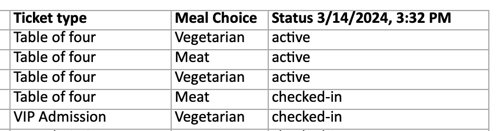
Attendance reports: download a report after your event to check whose tickets were checked-in or who attended.
The Attendance report provides insight on your event attendance. You will be able to view this report as your event check-ins are ongoing or after your event for a full report.
Accessing the attendance overview
Login to your Zeffy account and click on fundraising > campaigns in the left hand menu.
Click on the three dots to the right of the campaign in question and then on "manage event"
Below the fundraising total, switch into the "guest list view"
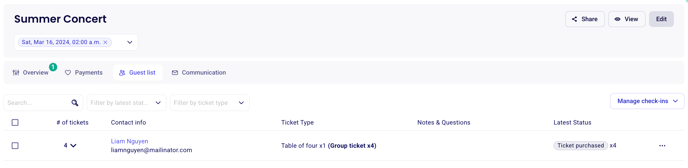
If your event is a date with multiple occurrences, make sure to also add a filter for a specific event occurence. The checkin manager will only show once a specific date has been filtered for.
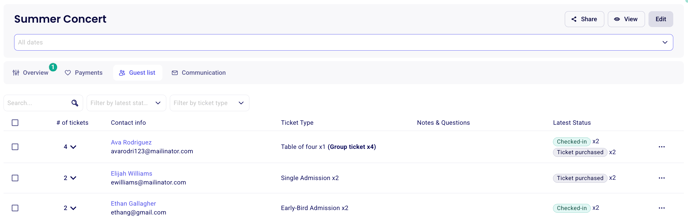
From there, you can take the following actions:
Accessing the check-in status of one specific guest
To access the status of one specific ticket, switch into the "guest list" table
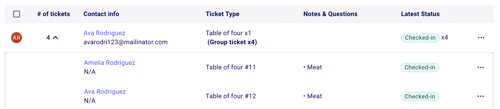
Expand the purchase for which you'd like to check the status. The "latest status" column will allow you to verify the status of individual tickets.
Downloading the attendance overview
To download a report of your attendance, switch into the "guest list" table
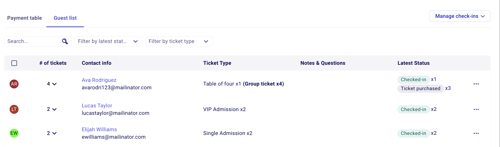
Click on the checkbox in the top left to select all your tickets.
Then, click on "export" in the top right.
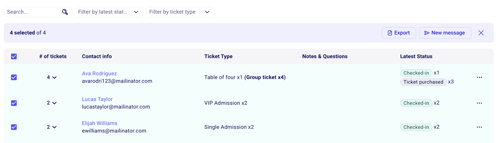
The exported sheet will contain one line for each ticket. The status column to the far right will indicate if that specific status is an active (valid), checked-in or cancelled ticket.