
Connecting a custom domain allows you to send emails from your organization's own email address (such as info@yourorganization.com) rather than sending emails from contact@mailer.zeffy.com. This ensures that your Zeffy newsletter stays aligned with your nonprofit’s brand.
Using a custom domain allows you to send an email to up to 30,000 contacts at once. Without a custom domain, you are limited to 5,000.
💡 Common email domains like Gmail, Outlook, Yahoo, and other public email providers cannot be used as custom domains. You must own the domain you wish to connect.
1. Navigate to Settings
Click on the down-arrow in the bottom-left corner of your dashboard, then click "Settings".
Screenshot suggestion: Show the bottom-left corner of the dashboard with the down-arrow and Settings menu highlighted.
2. Click "Add Custom Domain"
In the middle column of the Settings page, click "Add custom domain".
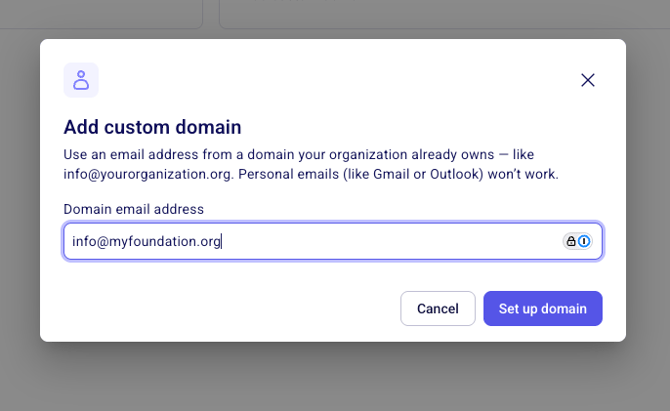
3. Enter Your Custom Domain Email
You will be prompted to enter a custom domain email address (for example: contact@thegreenfoundation.org).
Important:
- Common domains like Gmail and Outlook are not allowed
- The email address must be from a domain that you own
- Ensure you have access to your domain's DNS settings before proceeding
4. Continue to Entri
A dialog will open linking you to our custom domain partner, Entri. Click "Continue" to proceed.
Entri will help you automatically configure the necessary DNS settings for your domain.
Screenshot suggestion: Show the Entri integration dialog with the "Continue" button.
5. Allow Entri to Analyze Your Domain
Entri will analyze your domain (such as customdomain.com) to discover which DNS records must be added to your domain provider.
💡 What are DNS records? DNS records are settings that tell the internet how to handle your domain, including where to send emails.
Screenshot suggestion: Show the Entri analysis screen.
6. Add DNS Records to Your Domain Provider
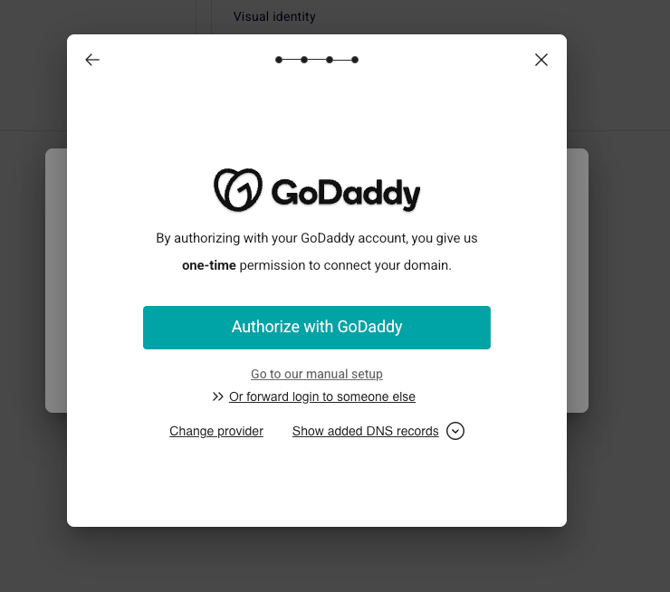
Option A: Automatic Configuration (Recommended)
If you use a common domain provider such as Cloudflare or GoDaddy, Entri will show you a button to automatically add your DNS records through their integration.
Simply click the button to complete the configuration automatically.
Option B: Manual Configuration
If Entri doesn't support automatic configuration for your domain provider:
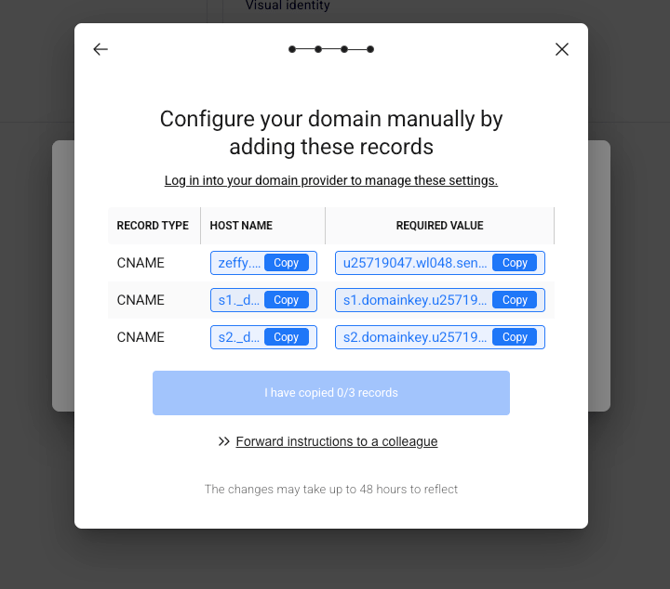
- Copy each of the DNS records shown, including:
- Record type (all custom domain items are CNAME records)
- Host name
- Required value
- Log in to your hosting provider's control panel
- Navigate to your DNS settings
- Create new DNS records using the information you copied
- Click "Save" in your hosting provider's settings
Important: Make sure to copy all information exactly as shown to ensure proper configuration.
7. Confirm Configuration
Once you have added all the DNS records (either automatically or manually), click "I have copied 3/3 domains" to confirm that you've completed the setup.
Important Notes
⏰ Processing Time: DNS changes may take up to 48 hours to be fully reflected in Zeffy. During this time, your custom domain may not work immediately for sending emails.
✅ Verification: Once the changes propagate, you'll be able to send emails from your custom domain address through Zeffy.
❓ Need Help? If you encounter issues connecting your custom domain, contact your domain provider's support team or reach out to Zeffy support for assistance.